How to Listen to Audiobooks on Ream
Ream is a serial fiction and reading platform where readers can discover stories, follow authors, and support creators directly. Readers can enjoy serial fiction, ebooks, audiobooks, and comics while engaging with stories through comments, notifications, and community features. Readers can listen to audio and audiobooks on Ream today using the platform’s built-in tools and settings.
Audiobooks are here! ✨
Ream is so pleased to offer authors the chance to upload audio books to the pages and offer them to readers.
Please Note: Audiobooks are still in the Beta phase, but many authors have already uploaded complete (and partial) books to their pages.
How to Listen to an Audiobook on Ream🥰:
- If the tier you're subscribed to gives you access to audiobooks, you'll find them at the bottom of the tier page along with other eBook stories:
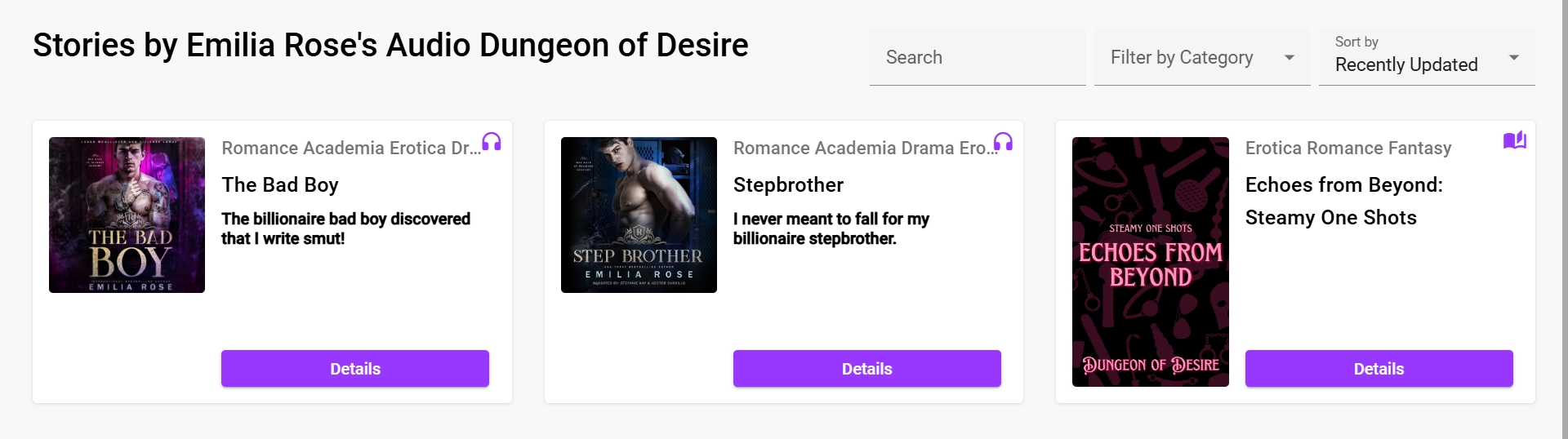
- Look for the Headphone icon that signals that the content is an audiobook.
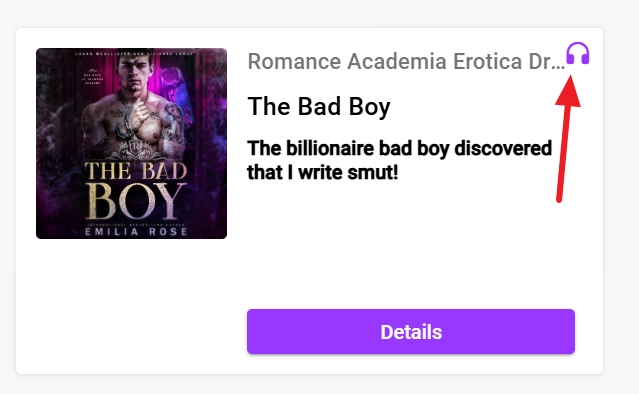
- Click on the Details button to open the audiobook:
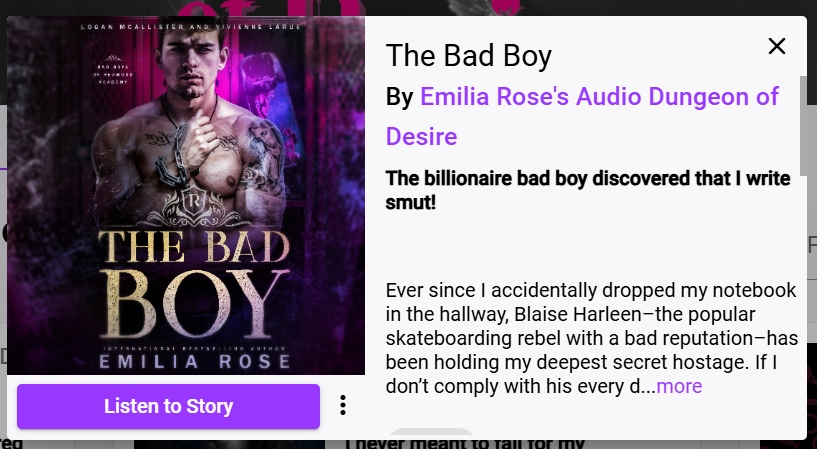
- Then, click the Listen to Story button:
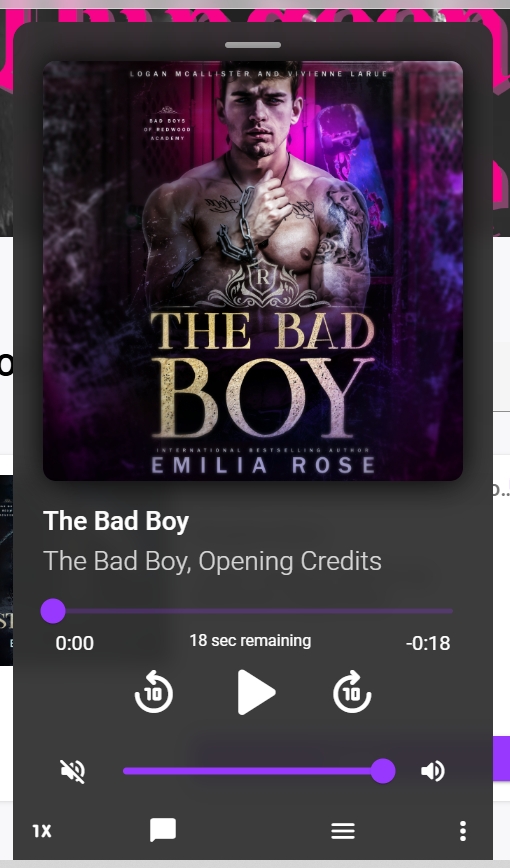
The audio player will open over the current page. You can adjust the volume here and press the Play icon (triangle pointing right). Each chapter available will automatically play after the previous one.
To play a preview of the title, look for this icon:
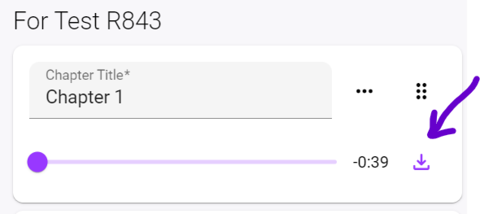
The audio will download to your device and then you can play it using the Play button
This is to prevent too much data being downloaded all at once to your device, causing it to crash.
If you've reached the end of the book, or the end of the chapters available for this book, you'll hear our own narrator Gregory Milne let you know what the status of the book you're listening to.
He'll also let you know if you need to upgrade your subscription to finish the book. Authors may make the first chapter or chapters free.
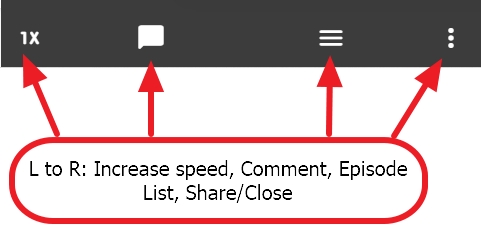
- There are also other settings at the bottom of the player. Please see the image below:
Troubleshooting 😬:
Audiobook not loading:
- Internet speed. If you have a poor wi-fi connection or intermittent service, this can cause that spinning (or hang) that you may be experiencing. The best solution for this is to move to find a stronger signal or try a 'wired' connection like cable internet.
- Depending on what device you're using, it may also be a caching issue. Browsers often get 'full' of stored sites and tabs so it can load regular sites for you more quickly.
- You may want to clear your browser cache (https://help.reamstories.com/article/181-how-to-clear-your-browser-cache), or try a different one, like Chrome, Safari, Opera or Firefox.
- For Safari users: may we suggest downloading the Chrome browser on your iPad or iPhone, and accessing Ream from that browser.
Unable to hear audio:
- Be sure that the volume on your device is at a level you can hear and that you aren't accidentally muted.
- Apple does not allow web apps to control the iPhone's or iMac's system audio for security reasons. Users will need to control the volume using the device's volume buttons or the system's volume controls.
If you have any questions, please contact our Support Team at support@reamstories.com.